
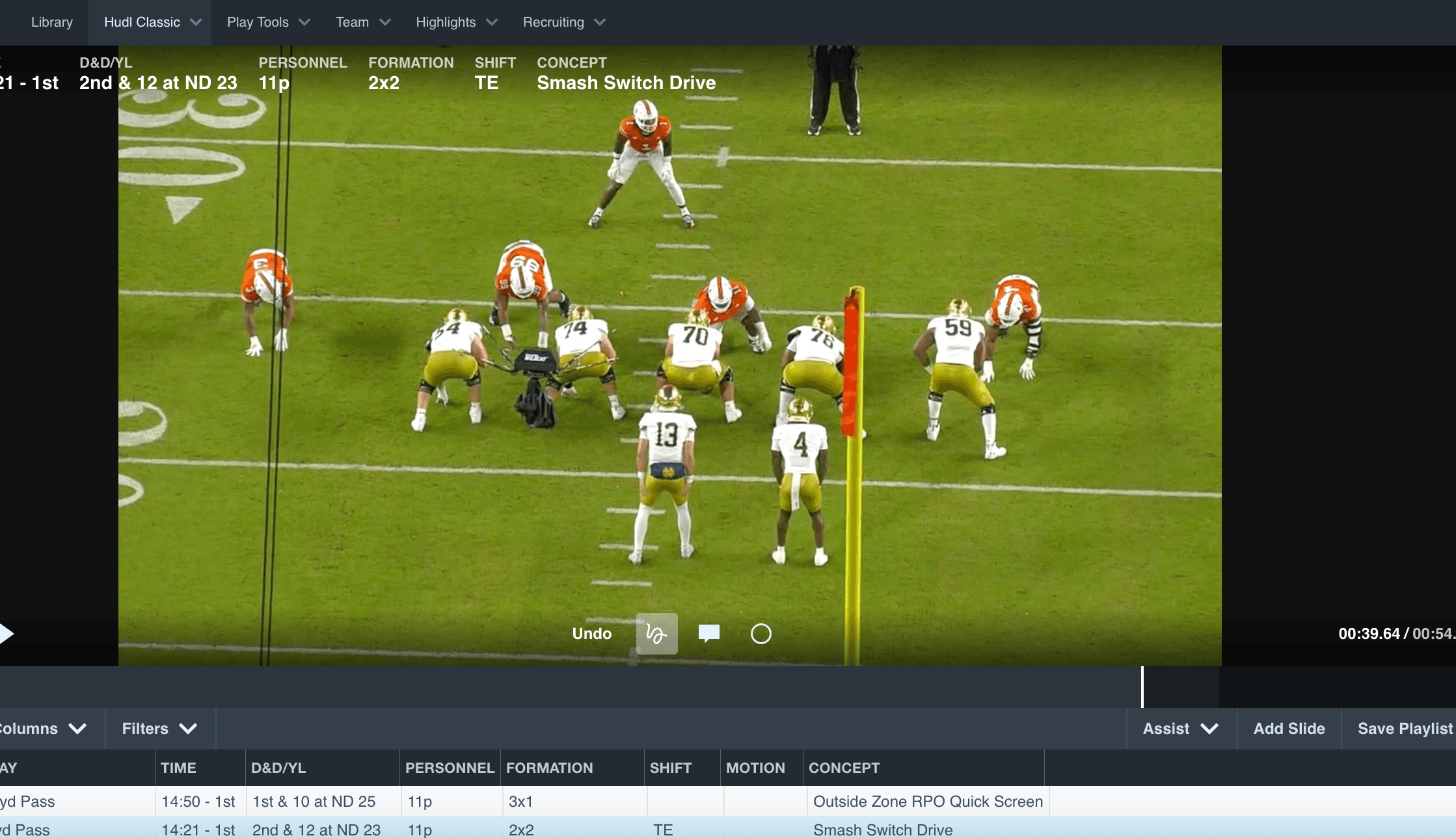
Our Systems have Navy, Vanderbilt, Georgia Tech, and Notre Dame’s 2025 offensive all-22 film with each play tagged by personnel, formation, shift, motion, and concept.
This article will show you how to add the all-22 film to Hudl and how to match the tagged data with it.
1. Download the All-22 Film
Choose a game and click “download”. Make sure that all the video files are in one folder and then upload it to Hudl.
2. Download the CSV File
Go to that game’s tagged data and click “download as CSV”.
3. Make The Columns Match
Go to “manage sets” on Hudl classic and make sure the columns on hudl match the columns on the spreadsheet with tagged data.
4. Import the CSV
Click on the 3 dots in the bottom right corner and click “import data”. Choose the CSV and unselect “film” and “player/gain” because those data sets won’t import.
5. Match the Film and Data
Once the data finishes uploading, select both the all-22 film and the data and click “match”. This will take you to the editor where you will click “save”.
Now you should be able to watch the all-22 film with the tagged data on each play!
The video below will show you step by step on how you can accomplish this as well.